Where to put the fields
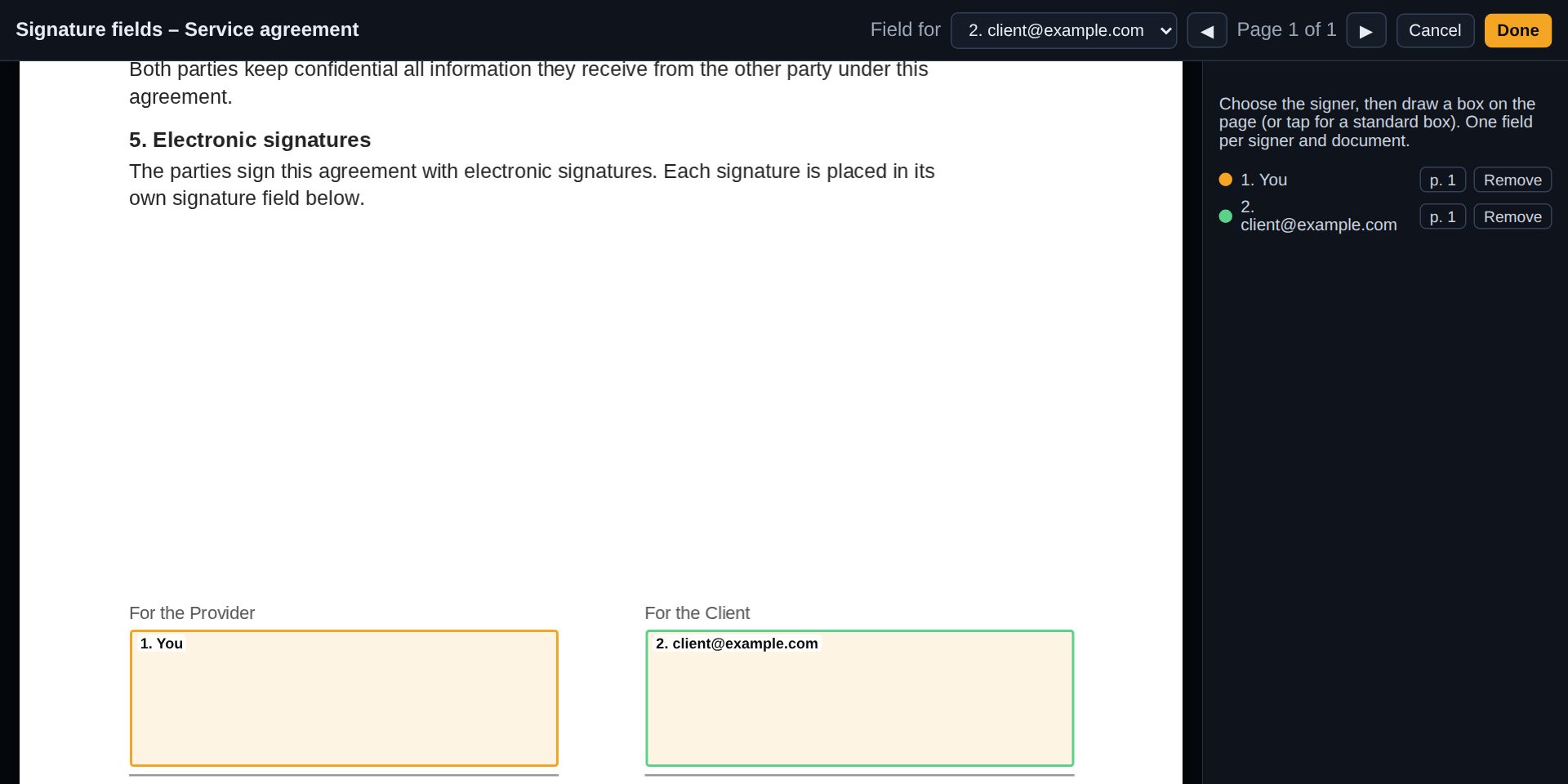
Put each field on the signature line of the document. Fields must be at least 60 × 20 points and lie inside the page; up to ten fields per document.
Guide · signature fields · about 3 minutes
This guide shows how you place a signature field for every signer on a PDF, decide what may appear in it and collect the signatures with CodeB Wallet – with screenshots of every step.
You need: an account on the site (a guest account is enough) and the PDF. Signers need the CodeB Wallet app for Android (myeudi.app); for a qualified signature also a signature card with a qualified certificate.
Open the signing page, sign in and choose one to ten PDFs (up to 50 MB together). Choose an advanced or a qualified signature and add the people who sign, in order: tick “I sign as well (first)” and/or invite others by e-mail.
Click Signature fields next to the PDF. Choose the signer at the top, then draw a box on the page where that person signs – or tap once for a standard 200 × 60 point box. Use the arrows for other pages. One field per signer and document; the list on the right shows every field with a link to its page. Click Done.
Under Visible signature tick what signers may use: Handwritten (drawn with the finger in CodeB Wallet or with the mouse on the website), From the ID document (the signature image of a mobile driving licence or from the chip of a passport or ID card) and Name only. Every signer who has a field signs visibly in it. Each signer then chooses one of the ticked kinds; tick at least one, otherwise Release for signing stays disabled. Then click Release for signing.
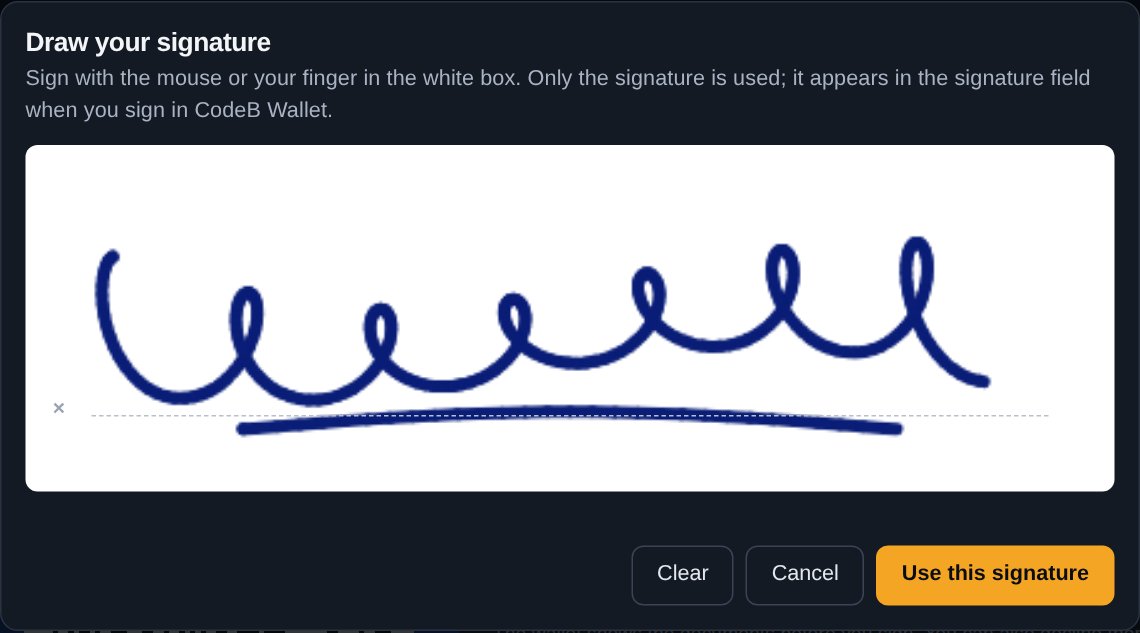
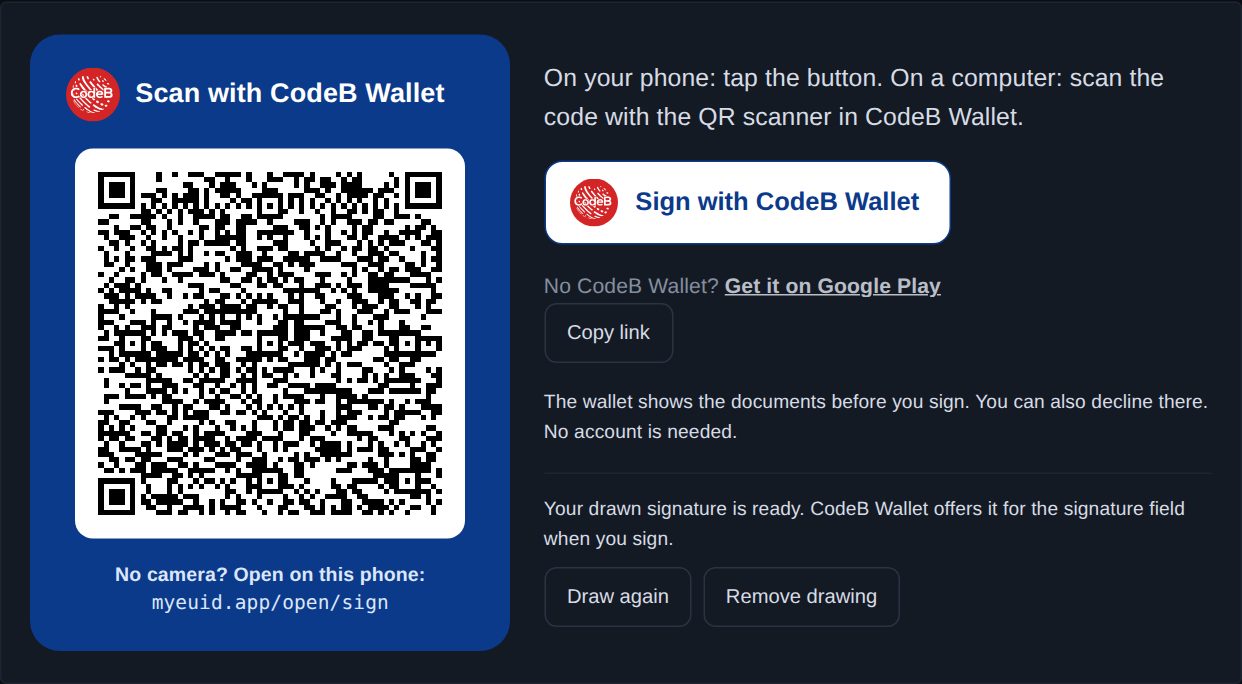
When it is a signer’s turn, their page (or your own QR box) shows Draw signature. On a computer this is the quickest way: draw with the mouse, click Use this signature. CodeB Wallet then offers this drawing next to its own drawing pad. Remove drawing takes it out again.
The signer scans the QR code with the QR scanner in CodeB Wallet (on the phone itself: tap Sign with CodeB Wallet). The wallet shows who asks and every document, offers the allowed kinds of visible signature and signs with the CodeB signing service or the signature card over NFC.
The server checks that exactly that signer’s field was signed, in place, and that the PDF still contains the earlier version unchanged. The next signer is invited automatically. At the end everyone gets the signed PDF; the viewer shows each signature with its check result.
Put each field on the signature line of the document. Fields must be at least 60 × 20 points and lie inside the page; up to ten fields per document.
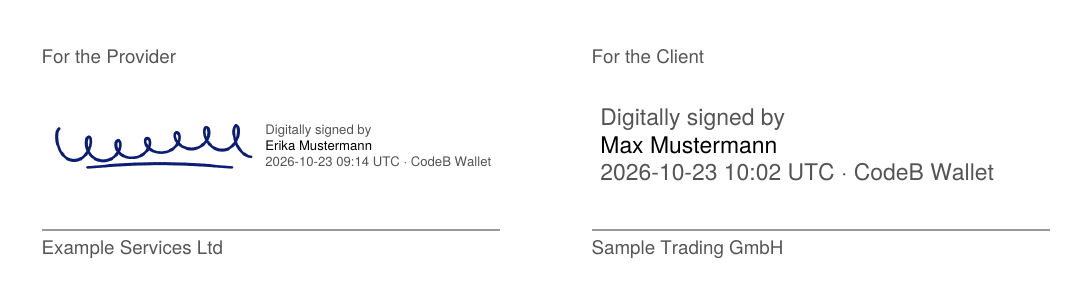
The image (if any) on the left; on the right “Digitally signed by”, the signer’s name from the certificate and the time in UTC. Letters outside the PDF standard font are shown without accents in this line only; the signature keeps the exact name.
A signer with a field always signs visibly in it. A wallet that cannot fill the field declines instead of signing invisibly, and the request shows that a visible signature could not be added.
A drawing made on the website is kept only while it is that person’s turn. The image from an ID document is used only with the signer’s consent in the wallet. Documents are deleted 30 days after the request closes.
The drawing is the visible appearance. What counts legally is the electronic signature in the same field: an advanced electronic signature, or a qualified one when the signer uses a signature card with a qualified certificate (eIDAS).
Yes. Each signer gets their own field, on any page of any document in the request.
No. Without fields the signature is invisible in the PDF, as before, and the signature panel of a PDF reader still shows it.
Yes. The create call takes a fields parameter with document, signer, page and position; see the signing requests API – or let an AI app do it: connect it via MCP.
How the signer chooses drawn, ID-document or name signature in the app.
Overview, security and comparison with classic e-signature platforms.
Create requests with signature fields from your own software.
Qualified signatures with the signature card read over NFC.